Vertical Text app for Confluence
This guide supports the Vertical Text for Confluence app, the Crenwiz product page for adding vertical, rotated text to Confluence Cloud pages and tables.
Use the steps below after installing the app to add Confluence vertical text, configure the macro, and keep table headers readable in narrow columns.
Installation
- Go to Vertical Text on Atlassian Marketplace
- Click on the Try it free button and follow the instructions.
Vertical Text Macro
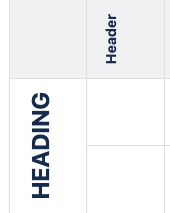
You can use the Vertical Text macro to insert vertical text anywhere on the page. This is especially useful in narrow table columns where horizontal text would take too much space.
- Edit a page
- Place a cursor at the location on the page where you wish to add the Vertical Text
- Insert a macro "Vertical Text".
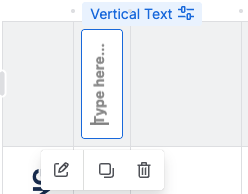
- Click on the macro placeholder.
- A cursor will appear inside the macro placeholder.
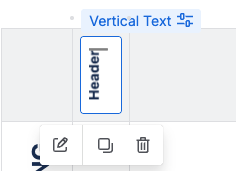
- Enter the text.
- The vertical text appears as you type.
Please note that the white background under the macro remains during page edits, and disappears after the page is published.
On Live Docs the white background is always present. This white background is enforced by Atlassian Confluence even when the macro itself has transparent background.
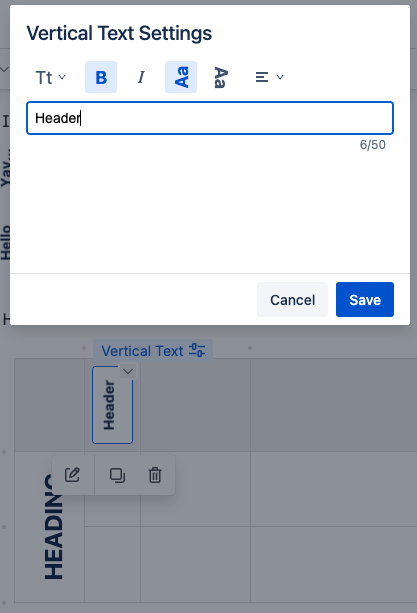
- For advanced formatting, open the macro configuration panel: