
Table Header Wizard Guides
Installation
- Go to Table Header Wizard on Atlassian Marketplace
- Click on the Try it free button and follow the instructions.
Table Header Wizard
You can use the wizard to convert multiple table headers into vertical text without having to add multiple vertical text macros one by one.
A) From the Action Menu
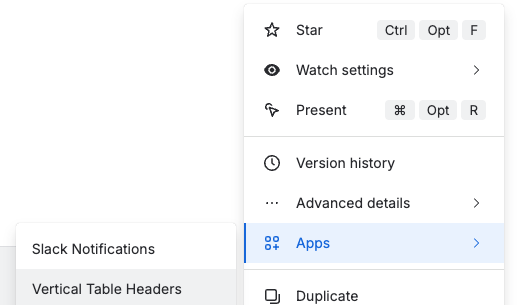
- From your Confluence page, click the ... (More Actions) menu at the top right.
- Select Apps.
- Click Vertical Table Headers.
B) Using Keyboard Shortcuts
For power users, you can quickly toggle the wizard at any time using our fast keyboard shortcuts:
- On Mac: Command (⌘) + Option (⌥) + Shift + -
- On Windows: Control (Ctrl) + Alt + Shift + -
🪄 Using the Wizard
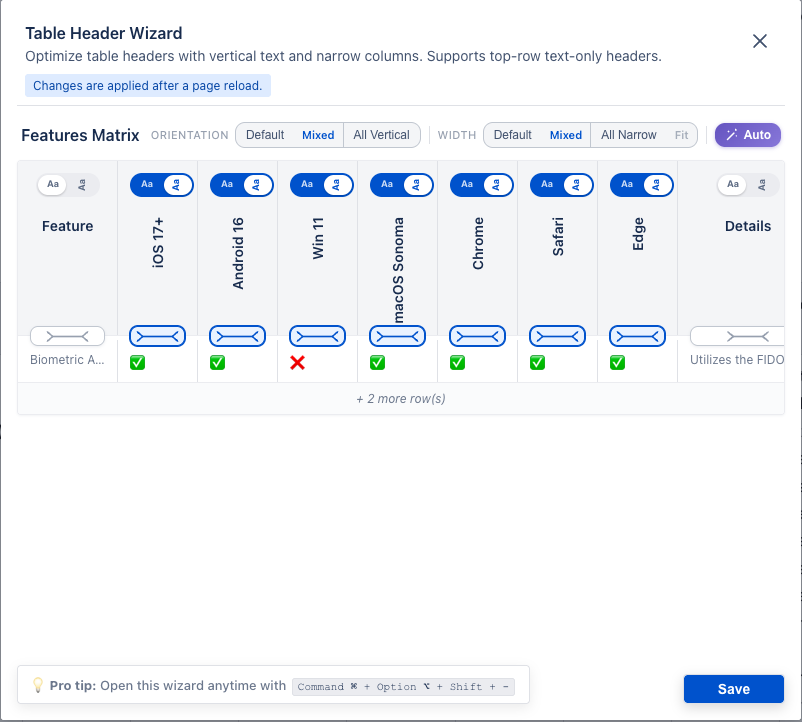
When the wizard opens, it automatically scans your page for tables and their top-row headers.
Click 🪄 Auto to let the wizard choose the best layout for each header: narrow columns can become vertical headers using the bundled Vertical Text macro, while other columns can stay horizontal and fit their content.
You can toggle each column individually, or use the quick-select buttons at the top:
- Default: Leaves all headers in their default horizontal/default width state.
- Mixed: Allows you to pick and choose exactly which column headers should be vertical or fit content, while leaving others manually set to horizontal.
- All Vertical: Instantly converts every supported header in the table into a vertical header.
- All Narrow: Instantly converts every supported header width to fit the content based on the content in its column.
❌ Unsupported Headers
The wizard currently supports converting text-only headers. If a header cell contains mixed content, macros (like status labels or dates), or images, it cannot be converted. These specific headers will be ignored and visually disabled in the wizard to ensure the rest of your complex content is preserved seamlessly.
👁️ What if no tables are found?
The wizard will display a message if the page doesn't have any tables, or it has unsupported headers.
💡 Pages vs. Live Docs Behavior
Depending on the types of pages you are using, the wizard operates slightly differently:
- Standard Pages: On classic Confluence Pages, due to the constraints of how realtime collaborative editing works, the wizard is only accessible when you are in View mode (it cannot be launched from within the Editor). Additionally, after applying your vertical header changes using the wizard, you must click the Reload Page button for the updates to securely take effect and be visible.
✅ The Vertical Text macro uses transparent background in the Page View mode. The white background behind the Vertical Text macro is displayed only during Edit mode. - Live Docs: On the newer Atlassian Live Docs format, you get an even smoother experience. The wizard is fully supported here, and updates happen in realtime - there is no need to manually reload the page.
⚠️ Due to the Confluence Live Docs format limitations, the Vertical Text macro is always displayed with a persistent white background. Unfortunately, this background is set permanently by Atlassian Confluence even if the macro itself has transparent background.
💡 Live Docs tip: After creating or heavily editing a table, wait a moment before opening the wizard. Live Docs sync changes in the background, so launching the wizard immediately, especially with the keyboard shortcut, can make it miss your newest table changes.