
Timeline for Confluence
 Includes Timestamp
Turn dates and timestamps on your Confluence Cloud page into a chronological timeline.
See what happened and when without piecing dates together by hand.
Timeline gathers native Confluence dates and Timestamp values from the page and puts events in chronological order. Use it for incident reviews, project milestones, and release histories.
Both macros share one installation and subscription. Use either on its own or combine them on a page.
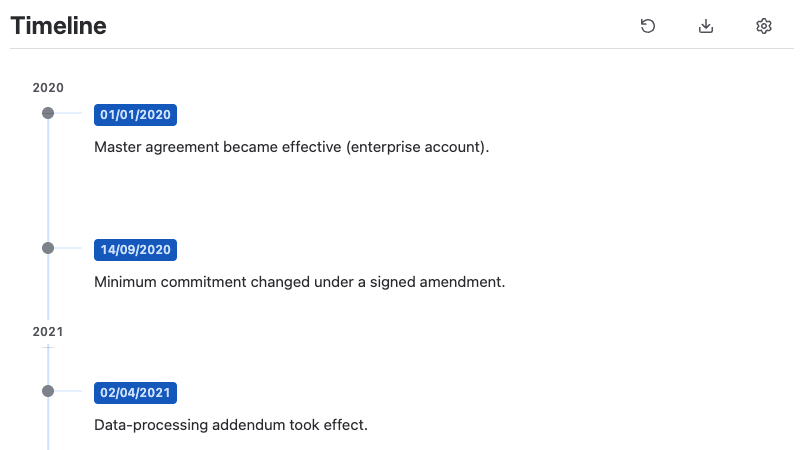
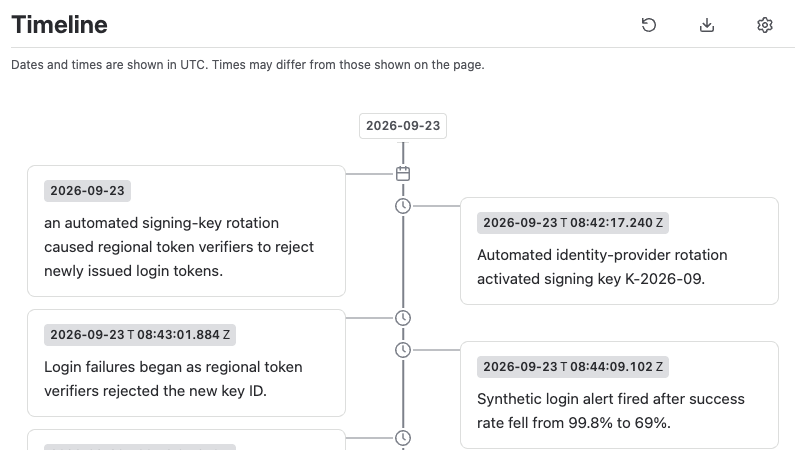
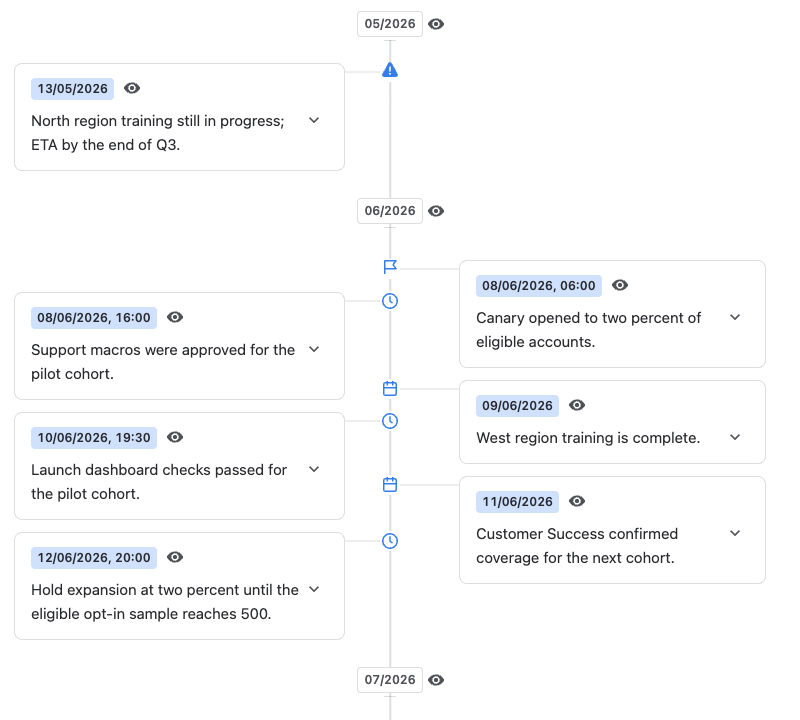
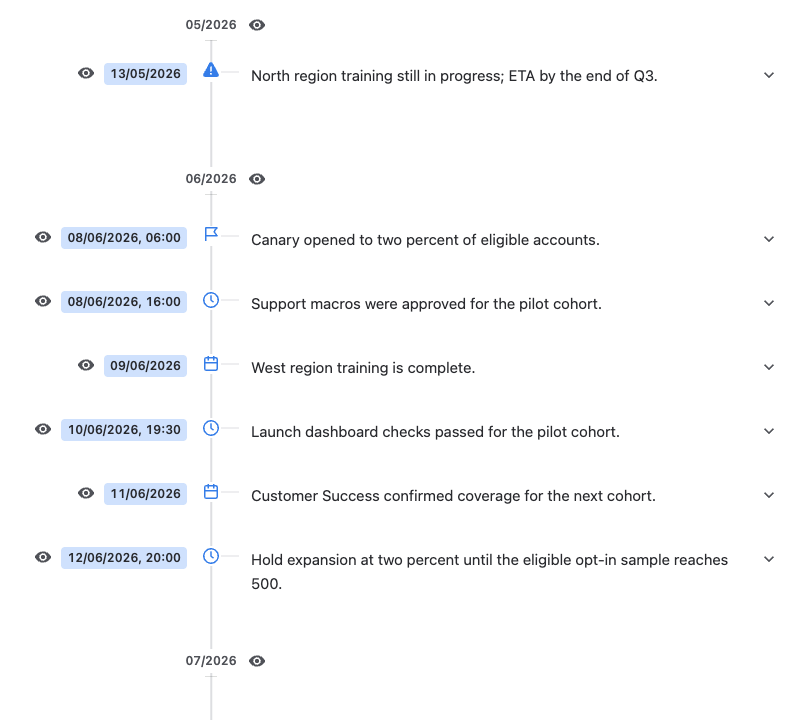
Key Features
Use dates already on your page: Build a timeline from native Confluence dates and Timestamp macros, with event descriptions drawn from nearby page text.
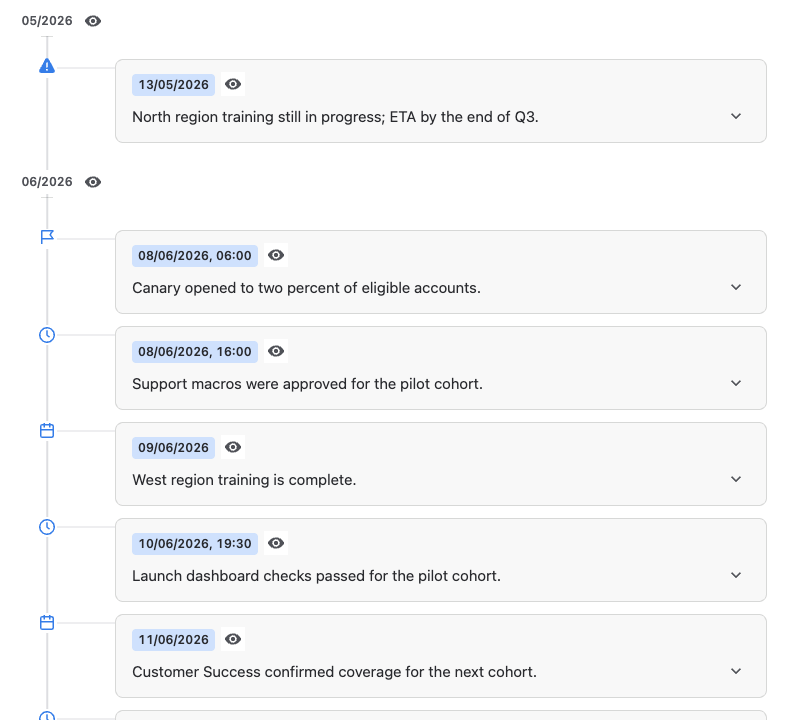
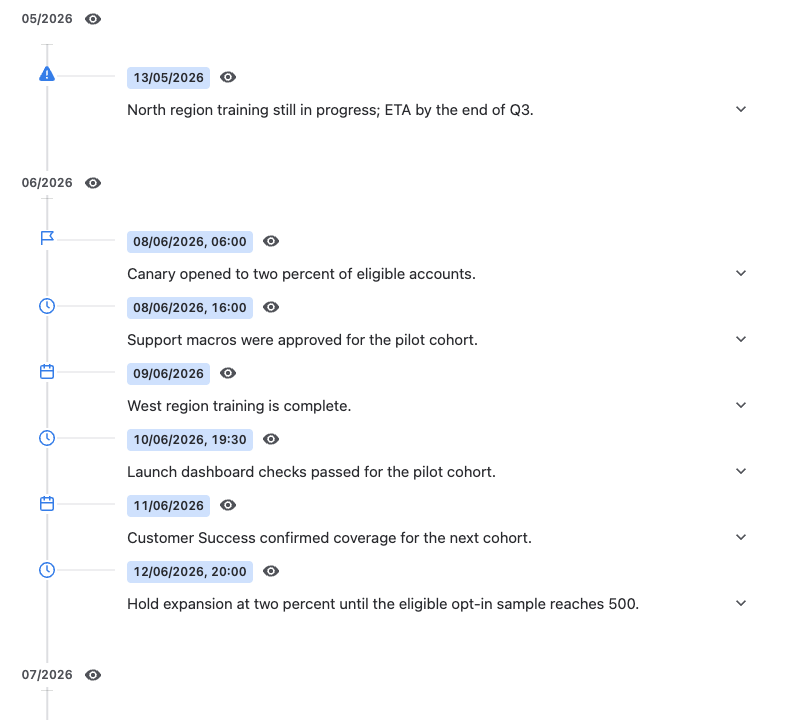
Choose a layout: Present events with Alternating, Date column, Cards, or Editorial layouts to suit your page.
Group events: Group by year, month, or day, or use a continuous timeline with proportional spacing and compressed empty periods.
Choose what readers see: Hide individual events, choose a description from the page, or write your own event text without changing the source dates.
Local and ISO display: Show timed events in the reader’s browser timezone or in UTC with ISO formatting. Native Confluence dates keep their calendar date.
Download your timeline: Download printable HTML to print or save as PDF in your browser, or export timeline data as JSON.
For more details, read our Guide for Timeline
Setup
- Open the Timestamp and Timeline listing on Atlassian Marketplace.
- Click Try it free and follow the installation instructions. One installation gives you both macros.
How to use it
- Add native Confluence dates or Timestamp macros to a page, alongside the text describing each event.
- Type /timeline in the page editor and select Timeline.
- Open Timeline settings to choose the layout, grouping, date format, and visible events, then publish the page.
Permissions
Timeline and Timestamp run on Atlassian Forge. Both share one installation and one Confluence page-read permission. Page content and saved macro settings are handled within Atlassian services and the user’s browser. Administrators control access to external app analytics through Atlassian’s app-management settings.
Why does Timeline need to read pages?
It reads the containing page’s content to find native Confluence dates, Timestamp values, and nearby text for event descriptions. It also uses page creation or update times for page-linked Timestamp values. The page response contains the page body, not just the dates; Timeline uses it to build the chronological view.
Can it read pages the user cannot access?
No. Published-page requests run as the current user and respect that user’s Confluence access. Timeline reads the page containing the macro; it does not search or crawl other pages or spaces. The permission itself allows page reads and is not technically restricted to a single page—the containing-page limit comes from how the app is implemented.
Where is data processed and saved?
Timeline builds and displays the timeline in the user’s browser. Published content comes from Confluence; while editing, it uses the current page draft. Page-linked date metadata can also be resolved in Atlassian’s Forge environment.
Layout, grouping, colours, visibility choices, event text selections, and custom descriptions are saved as Timeline macro configuration within the Confluence page. The app does not keep a separate copy of the source page in a Crenwiz database. Saved macro data follows your organisation’s Confluence page lifecycle and retention controls.
Can the app change our content or permissions?
It saves Timeline macro configuration through the Confluence editor. Hiding an event or changing its description changes the timeline view, not the source date, Timestamp, or surrounding page text. It does not change page access, space settings, or user permissions. The app requests no Confluence REST API write, delete, or administration scopes.
Does data leave Atlassian?
Confluence page content and saved macro settings stay within Atlassian services and your browser. External transfers are limited to anonymised usage analytics sent to Atlassian-approved analytics services when analytics access is enabled. Forge’s egress permissions restrict those connections to the declared analytics destinations.
Administrators can disable analytics access for the installed Forge app in Atlassian Administration → Connected apps → the app’s details. They can also set the default for new installations under Connected apps → Settings. See Atlassian’s analytics and log controls.
HTML and JSON exports are generated in the user’s browser and downloaded to their device only when requested. No external export service receives the data.
Downloaded files contain event dates and descriptions. JSON also includes hidden events and their visibility flags, so hiding an event in the timeline does not remove it from a JSON export. Treat downloaded files according to your organisation’s information-sharing rules.
What should our security team review?
The shared scope is read:page:confluence (View pages). Published-page reads use Atlassian’s Get page by id API. Timeline reads the current editor content while editing and the published content while viewing; Sync reads it again. Page-linked dates may require an additional metadata request.
For vendor policy and further review, see our privacy policy or contact support@crenwiz.com. For Timestamp’s own features, see Timestamp permissions.