
Guide for Timestamp
for Confluence
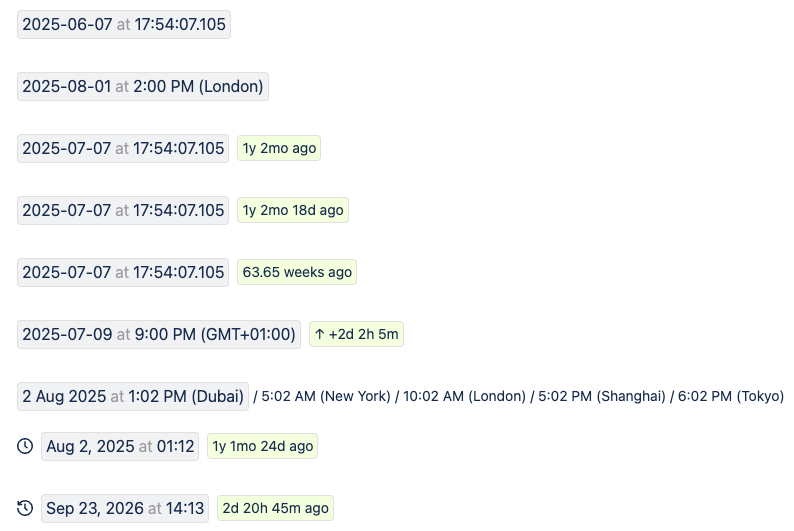
Use Timestamp to show page creation and last updated times, precise dates, local time conversion, countdowns, count-ups, and ISO timestamps on Confluence Cloud pages.
Installation
- Go to Timestamp on Atlassian Marketplace.
- Click Try it free and follow the Atlassian installation flow.
- After installation, open a Confluence page where you want to add a timestamp.
Insert the Timestamp macro
- Edit a Confluence page.
- Type /timestamp or /now, select the Timestamp macro, then press Enter.
- Click the Timestamp macro placeholder to open the configuration panel.
- Enter a date, time, timezone, or natural-language value.
- Click Save, or press Ctrl+Enter on Windows or Command+Enter on Mac.
Natural language dates
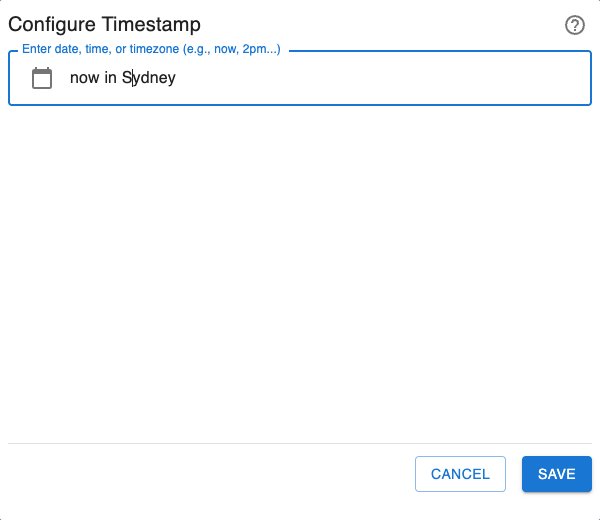
Timestamp understands plain inputs like now in Sydney, 10:30am Dubai, and tomorrow 2pm London.
Use natural language when you want to create a readable Confluence timestamp without manually choosing every field first.
Multiple date, time, and timezone formats
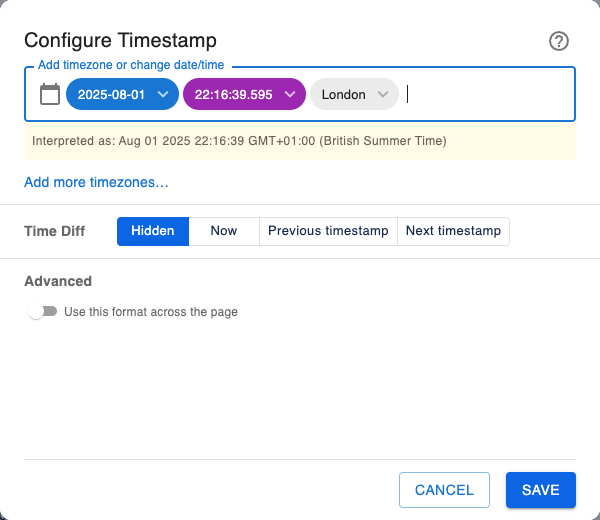
Timestamp supports full dates, precise times, city names, IANA timezone names, and ISO 8601 timestamps.
Use the parsed preview to confirm the date, time, and timezone before saving the macro.
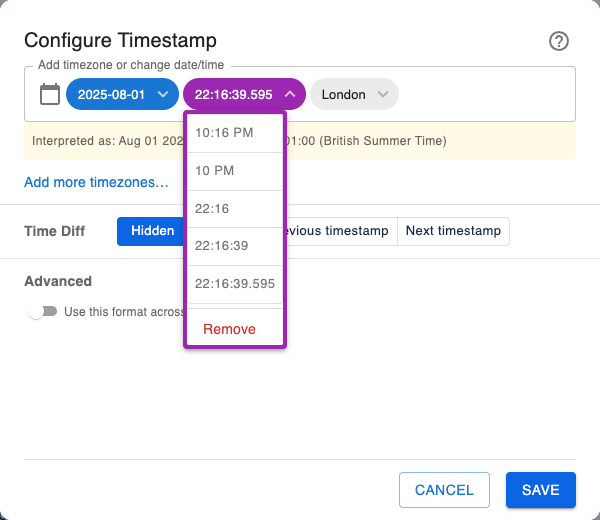
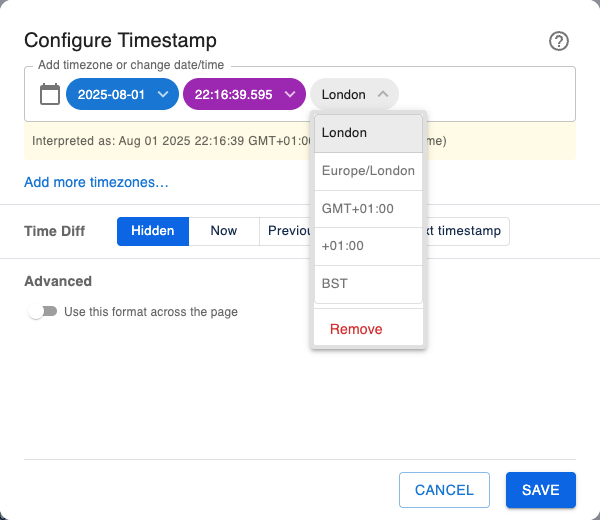
Choose what your timestamp shows
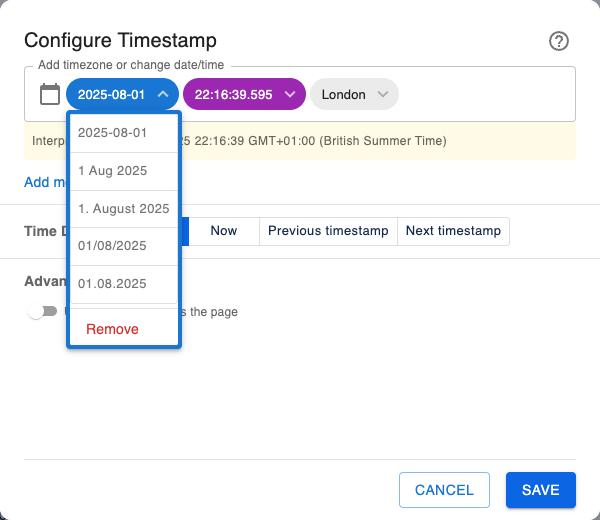
Confluence's built-in date macro and the page sidebar show a fixed set of details. Timestamp lets you show the date, time, or timezone on its own, or combine any two or all three. This also works for Page Created and Page Last Updated timestamps.
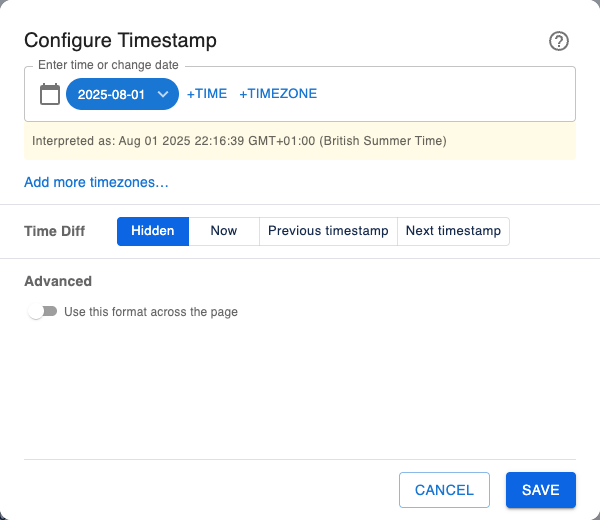
Keep at least one component selected. When you remove one, a shortcut appears in the configuration panel so you can add it back with a click. The example shows a page creation timestamp with only its date visible and shortcuts to add the time or timezone.
Timezone conversion
Add the source timezone when the original time matters, such as a release deadline, incident review, team meeting, or customer handoff.
Timestamp can show the configured source time and the equivalent time in each viewer's local timezone, so readers do not need to calculate offsets manually.
Countdowns and count ups
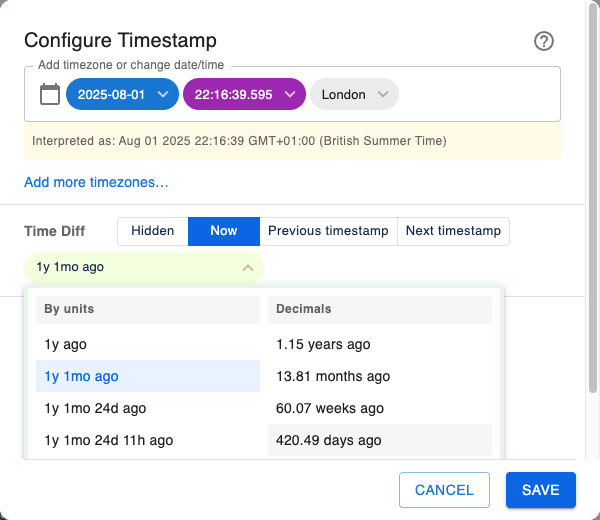
Use countdowns for upcoming deadlines, launches, review windows, and meetings.
Use count-ups for elapsed time, published dates, incident age, or anything that should read as time since an event.
Copy an ISO timestamp
Click a saved timestamp on the page to copy its full ISO 8601 value to the clipboard.
After the click, Timestamp shows a short "Copied!" confirmation on the timestamp, so readers know the copy action worked.
Use ISO timestamps when you need an unambiguous date for logs, tickets, API payloads, audits, or cross-system references.

Comprehensive built-in help
Timestamp shows supported input examples inside the macro configuration panel.
Use the built-in help for current time, dates, times, timezones, and ISO timestamps. It also has shortcuts for Page Created and Page Last Updated.
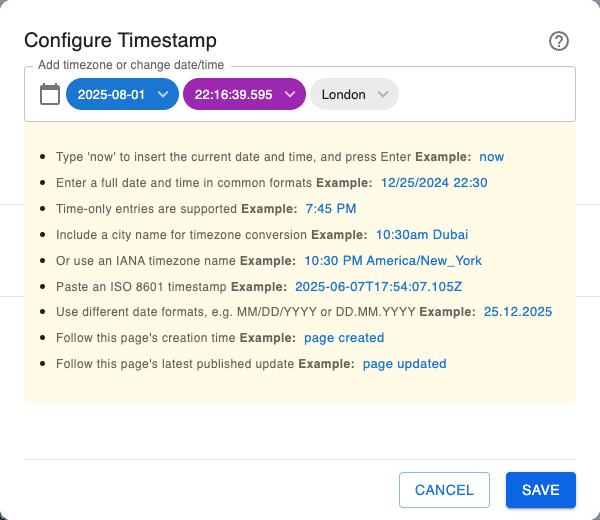
Page linked times
Show when a Confluence page was created or last published without entering a date yourself. Type page created or page updated in the timestamp field, or select either example from the built-in help.
The timestamp follows the page it appears on. Page Created keeps the original creation time; Page Last Updated changes after a new version of that page is published. You can still choose which date, time, timezone, and relative-time details to show.
To stop following the page, open the macro configuration panel and click the source icon at the start of the timestamp field. This unlinks the timestamp and lets you edit it as a fixed timestamp.
Use one format across a page
Under Advanced options, Use this format across the page applies the Timestamp's date, time, timezone, and Time Diff setting to every Timestamp on the page. Timestamps added later inherit it too.
Troubleshooting
- If the displayed time is unexpected, check the source timezone and whether local viewer timezone display is enabled.
- If a natural-language value is ambiguous, use a more explicit date, time, and timezone.
- If a countdown or count-up looks static, reload the Confluence page and confirm the macro is published rather than still being edited.
- If keyboard save does not work, use the Save button in the macro configuration panel.
FAQ
Can Confluence show timezone-aware timestamps?
Confluence Cloud has a built-in date macro, but Timestamp adds page creation and last updated times, precise times, timezone conversion, countdowns, count-ups, and ISO copy support.
Does Timestamp include Timeline?
Yes. Timestamp and Timeline share one Marketplace listing, installation, and subscription. You can use either macro on its own or use Timestamp values as events in Timeline.
Can Timestamp show each reader their local time?
Yes. Timestamp can display the source time and the equivalent time in the viewer's local timezone.
Can I create countdowns in Confluence?
Yes. Timestamp can show countdowns for future dates and count-ups for elapsed time after an event.
Does Timestamp support ISO 8601?
Yes. Timestamp accepts ISO 8601 input and lets readers copy the saved timestamp in ISO format.
How do I unlink a page creation or last updated timestamp?
Edit the Timestamp macro. Hover over the source icon at the start of the timestamp field, then click the unlink control that appears. The timestamp becomes an editable fixed timestamp, so it no longer follows the page.

