
Guide for Timeline
for Confluence
Build a timeline from dates already on your Confluence page, then choose how events appear. Timeline and Timestamp share one installation and subscription.
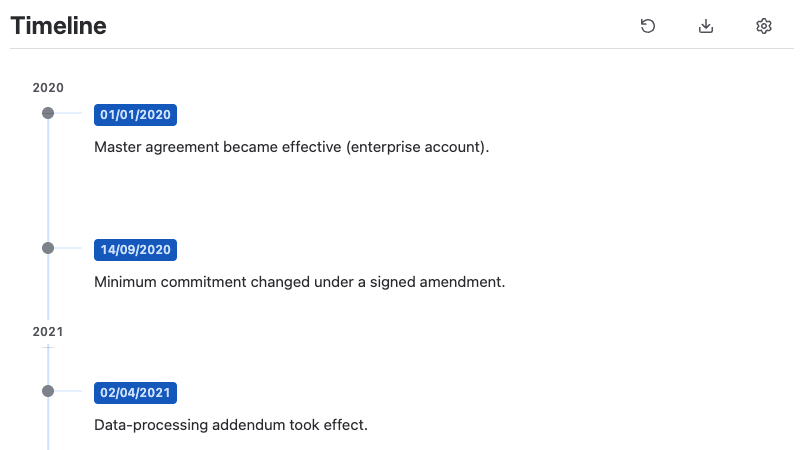
Installation
- Open the Timestamp and Timeline Marketplace listing.
- Click Try it free and follow the Atlassian installation flow.
- Open a Confluence page. Both Timeline and Timestamp are available from the same installation.
Insert the Timeline macro
- Edit a Confluence page.
- Add native Confluence dates or Timestamp macros alongside the descriptions of your events.
- Type /timeline and select the Timeline macro.
- Open the Settings control in the Timeline header to configure the view.
- Wait for the Saved status after changing settings, then publish the page.
Settings
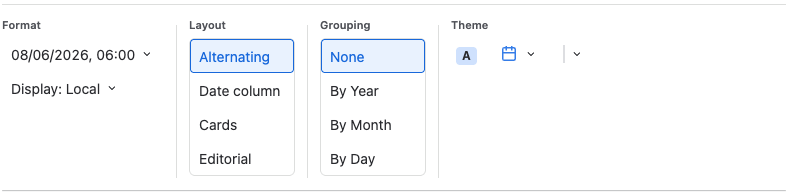
While editing the page, open Settings in the Timeline header. Use Format, Layout, Grouping, and Theme to choose how your timeline appears. Changes save automatically.
Dates and event descriptions
Timeline reads native Confluence dates and Timestamp macros from the same page and sorts them chronologically. You can use native dates without adding Timestamp macros.
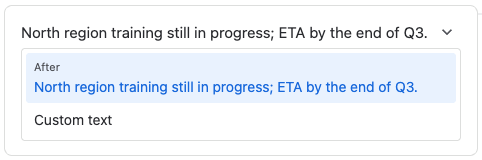
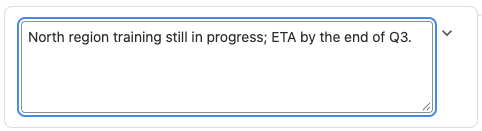
While editing with settings open, choose an event’s description from nearby page text or enter custom text. Use the visibility control to hide an event from the displayed timeline without removing its date from the page.
Layout
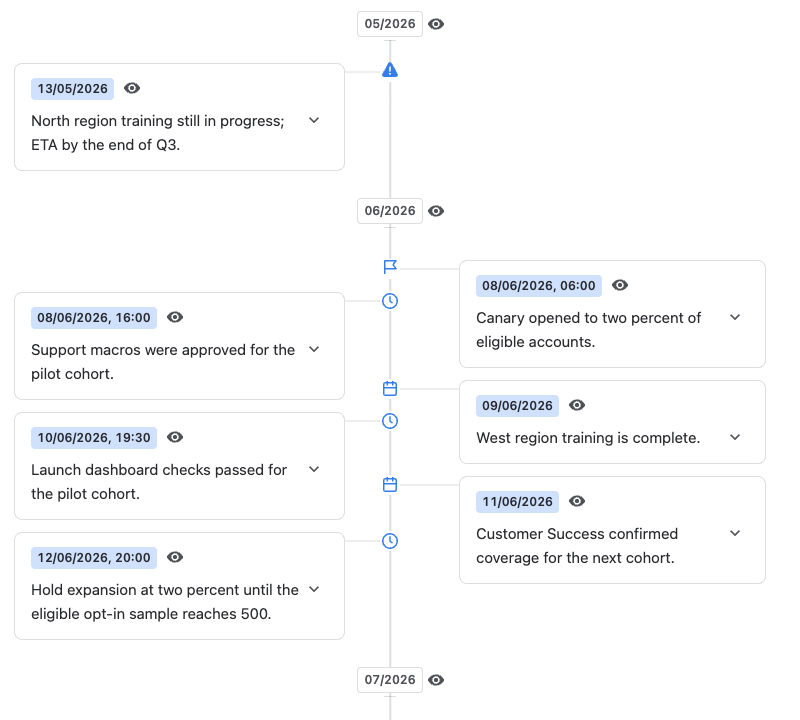
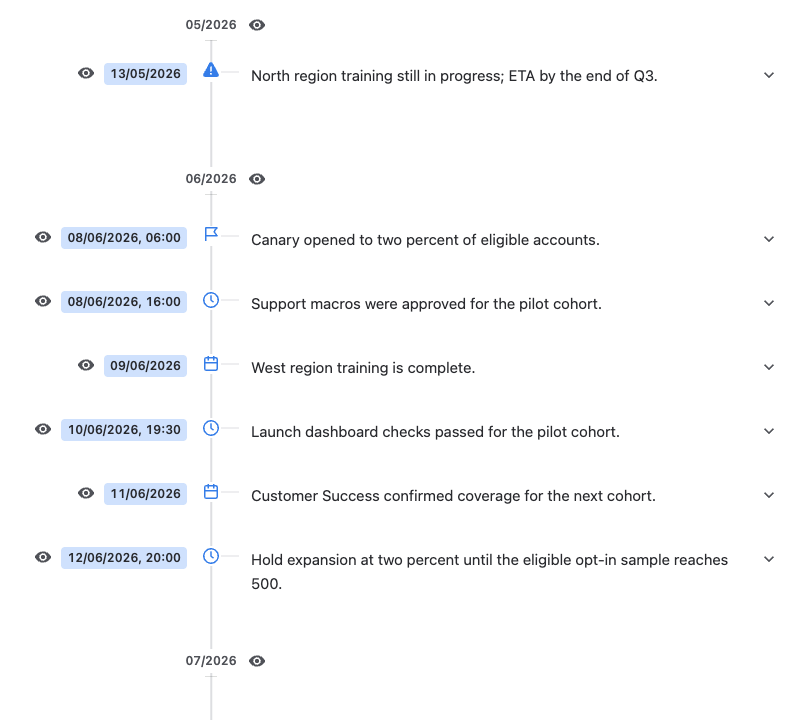
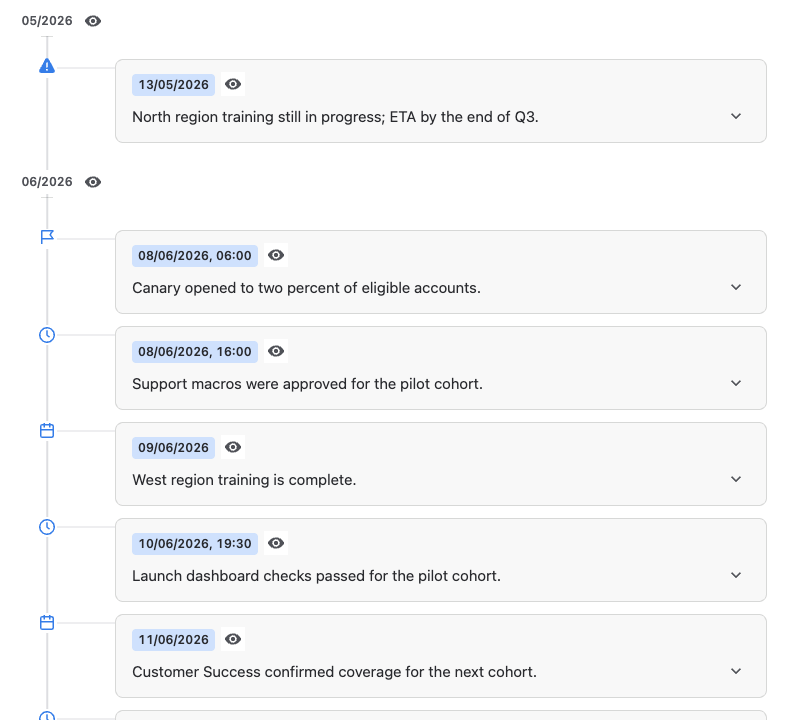
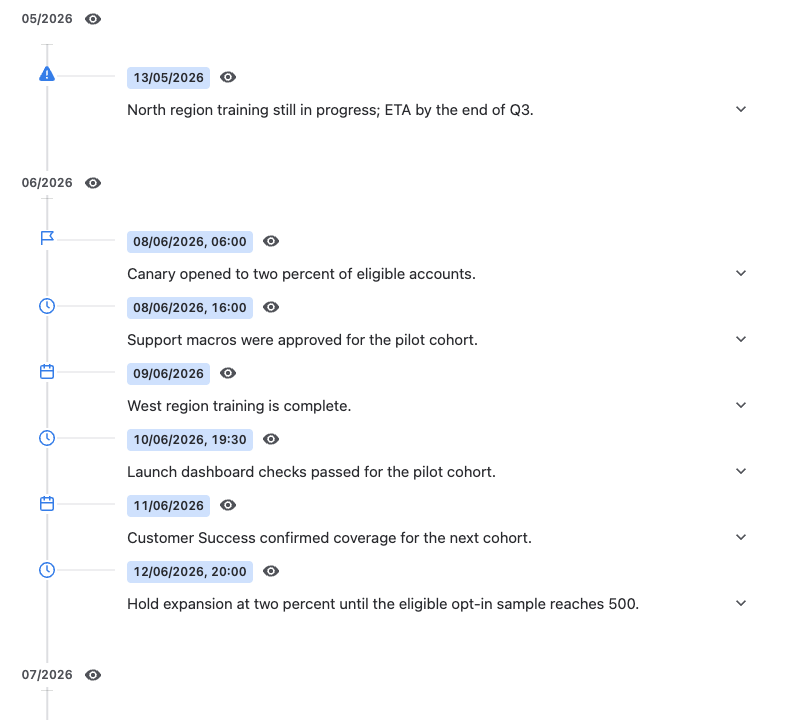
In Settings, open Layout and choose Alternating, Date column, Cards, or Editorial.
Grouping
Under Grouping, choose None, By Year, By Month, or By Day. None uses proportional spacing with empty periods compressed. Grouped views keep descriptions readable; the distance between events does not represent elapsed time.
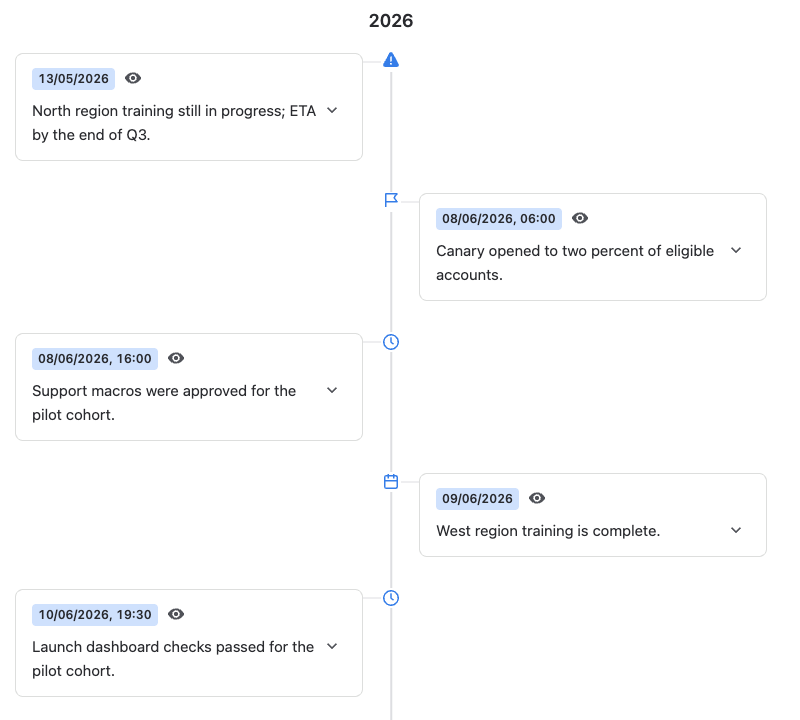
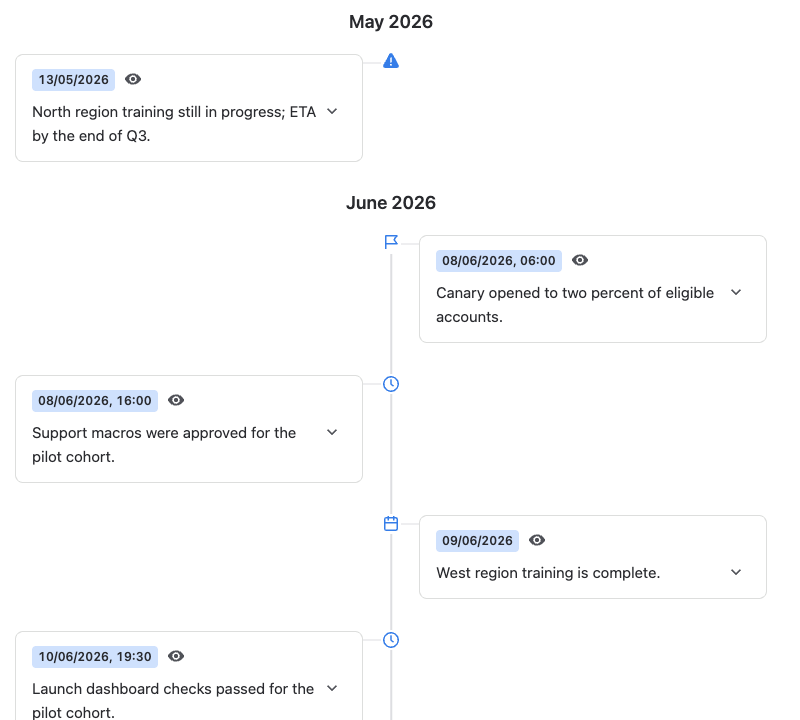
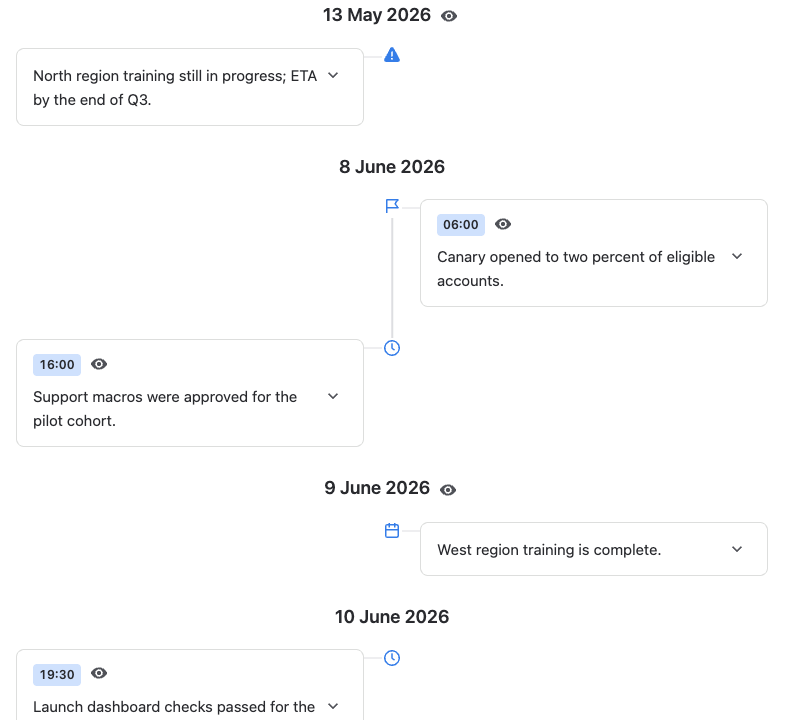
Date and time detail
Under Format, choose how much detail to show: year, month, date, or date and time down to the hour, minute, second, or millisecond. The most detailed option also shows the timezone.
Each option includes a preview so you can choose the detail that suits your events.
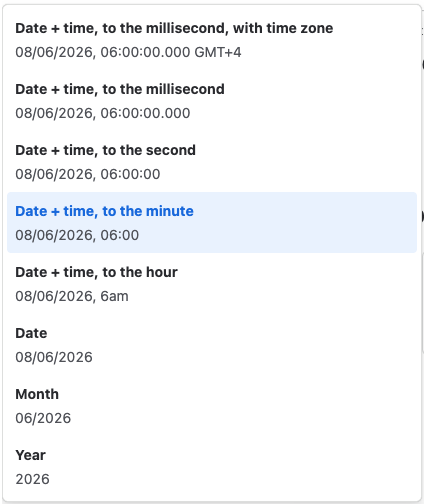
Local and ISO date display
Under Format, select Local or ISO display. Local follows the reader’s browser region and timezone. ISO shows timed events in UTC.
The display changes how a source instant appears, so times may differ from the Timestamp formatting on the page. Native Confluence dates remain date-only values and do not gain a time or timezone.
Theme
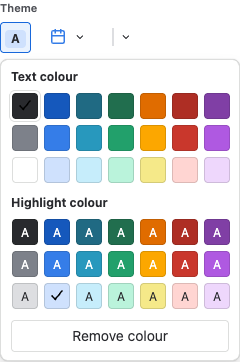
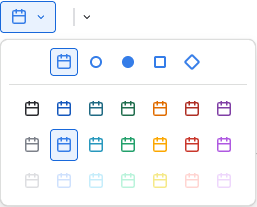
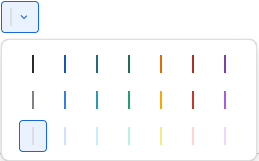
Use Theme to choose date-label text and highlight colours, bullet style and colour, and line colour.
Timeline follows Confluence light and dark mode. Printable HTML uses a light background.
Custom icons
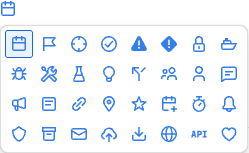
With Icons selected under Theme, click an event’s marker while editing with settings open to choose its icon. Each event can have its own icon.
Sync after page changes
Click Sync in the Timeline header to read the page again after changing dates or event text. In the editor, Timeline reads the current draft. On a published page, it reads the published content.
Download a printable timeline or data
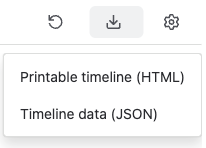
Open Download this timeline in the header and choose Printable timeline (HTML) or Timeline data (JSON). Downloads are available while editing and viewing.
The HTML file includes visible events and your selected layout. Open it in a browser to print or save as PDF.
JSON includes chronological events, selected text, and visibility flags, including hidden events. Timestamp values use UTC; native dates remain calendar dates. The data export omits theme, colour, and symbol settings.
Troubleshooting
- If no events appear, add a native Confluence date or Timestamp macro to the same page, then click Sync.
- If a date is missing, open Settings and check its visibility control.
- If times differ from the page, check Local versus ISO display and the browser timezone.
- If recent changes are missing on the published page, publish the draft and click Sync.
- If Timeline cannot read the page, check that you can access the containing page. If settings fail to save, try the change again and wait for Saved before publishing.
FAQ
Does Timeline include Timestamp?
Yes. Timeline and Timestamp share one Marketplace listing, installation, and subscription. You can use either macro on its own or combine them.
Do I need Timestamp macros to build a timeline?
No. Timeline also reads native Confluence dates. Use Timestamp when your events need precise times, timezones, or page-linked dates.
Can Timeline gather events from other pages?
No. Timeline gathers events only from the page containing the macro. It does not combine dates from other pages or spaces.
Does changing an event description change the page text?
No. Your description choice and custom text are saved in the Timeline macro. The source page text remains as written.
Why does an event time differ from the Timestamp on the page?
Timeline has its own display format. Local uses the reader’s browser timezone; ISO uses UTC. Both represent the same source instant, while the Timestamp macro may show a different timezone.
Can I export a PDF?
Download Printable timeline (HTML), open it in your browser, and use the browser’s print dialog to save a PDF.